
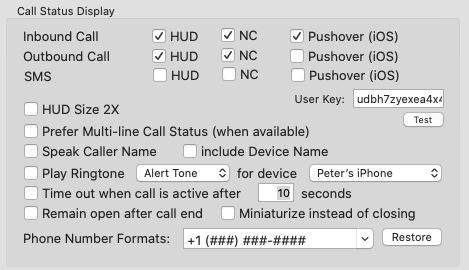
Phone Amego allows you to configure how you want call status information to appear including a pop up status window (HUD), using Apple's Notification Center, or as a push notification (iOS, Android, or desktop). The Speak Caller Name feature can take advantage of the phonetic name fields in your Address Book to pronounce contact names more accurately.
You can select a Ringtone for each telephone device if desired (some cell phones may not ring when connected via Bluetooth). You can add your own Ringtones (or songs) in ~/Library/Application Support/Phone Amego/Ringtones/. In Mac OS X Lion, the Library folder is normally hidden. From the Finder, click on the Go menu while pressing Option to reveal the Library folder inside your Home folder. You can specify a ringtone for a caller in your Address Book by adding a phone number with the custom label "ringtone" and setting the value to the name of the ringtone desired.

For more options, see Caller ID Lookup
Phone Number Formatting
Phone Amego tries to use the phone number formats already defined in your Address Book. To customize your Address Book formats, navigate to “Address Book -> Preferences -> Phone” and select “Custom” in the Formats popup menu that appears. For each digit in the telephone number received, Phone Amego replaces a "#" in the format string from right to left.
You can also enter phone number formats directly in Phone Amego using the ComboBox shown. To add a new format, type your new format and press Enter. To edit an existing format, select it in the drop-down list first. To cancel editing, open and close the drop-down list without selecting an item. Selecting an item while pressing Control will move it to the top of the list. Press Restore to reload the formats defined in your Address Book preferences.
Event URLs
Event URLs are used to link Caller ID information from your phone to a URL on the web. See "Caller ID Lookup -> Web Applications".
Local HTTP Server
The Local HTTP Server is used to integrate Phone Amego with popular IP phones from Polycom, Yealink, Snom, and Aastra. See "VoIP -> Polycom IP Phone".
Preferred CRM (Customer Relationship Management)
The Preferred CRM setting lets you select which program is used to display contact information when you click on the rolodex card icon in a Call Status or Log window. Options include Apple Contacts (Address Book), Daylite, or Phone Amego.