
Depending on which model of Polycom phone and firmware you have, these settings may look different.
Polycom SoundPoint IP320
Polycom VVX300

1. Point your web browser at the IP address of your Polycom phone http://ipAddress or https://ipAddress
To show the IP address of your phone, use the buttons on your phone to navigate to
Menu > Status > Network > TCP/IP parameters; or
Home > Settings > Status > Network > TCP/IP parameters
2. Login with your username and password (defaults to username "Polycom", password "456").
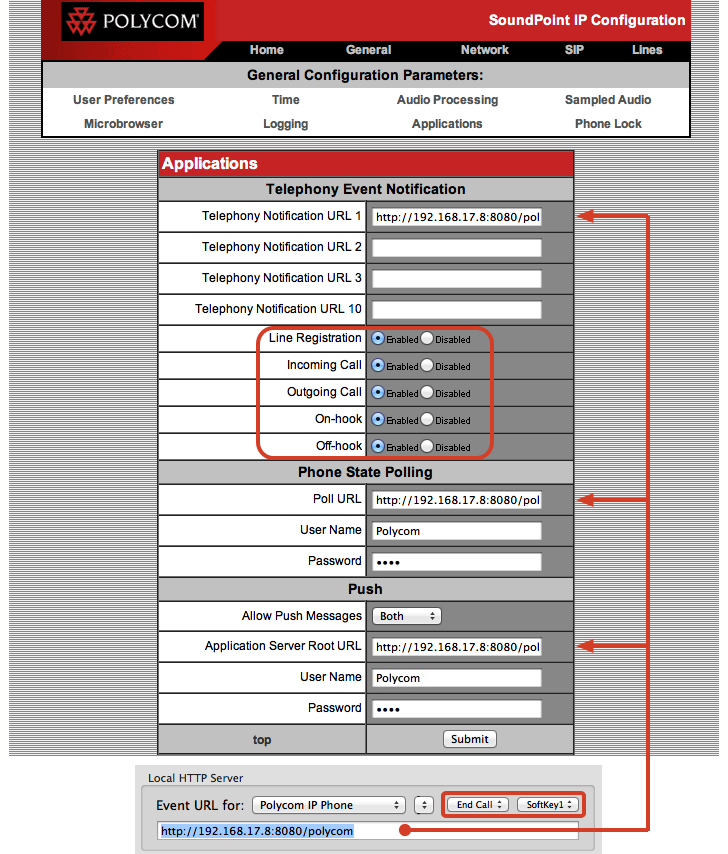
3. Navigate to General > Applications; or
Settings > Applications
4. Copy the Local HTTP Server URL (under the Caller ID tab in Phone Amego) and paste it as:
a Telephony Notification URL,
the Poll URL, and
the Application Server Root URL
5. Enable the desired telephony events (all of them).
6. Set a User Name and Password for Phone State Polling and Push. You can use the same default user name and password if desired. If you set a different user name or password, Phone Amego will prompt you for it the next time it tries to connect with your phone. These fields are required and will not work if left blank.
Notice there are four separate username and password credentials (Admin or User Login, Phone State Polling, and Push). For Polycom, Phone Amego doesn’t need your phone’s Admin credentials (a nice safety feature). Normally Phone Amego will prompt you for the Polling and Push credentials the first time they are needed. If for any reason it doesn’t, the old credentials can be found in your Mac OS X Keychain and deleted which will force Phone Amego to prompt for them if needed.
7. Set Allow Push Messages to Both or All.
8. Press Submit or Save. Your phone may need a moment to update its settings.
9. Depending on which model of Polycom phone you have, the "End Call" function may use SoftKey1 or SoftKey2. You can select this from Phone Amego as shown.
10. Press and hold the Command key on your Mac keyboard while you pickup the handset on your phone. Then enter the corresponding password if you are prompted to do so. When Phone Amego sees the "Off-hook" event with the Command key down, it will add your phone to the telephone devices table. [This step may be optional the first time you add your phone.]
11. Refer to the Access Control section below to make sure your computer is authorized to connect to your phone.
When you are ready to place a call, select your Polycom IP phone as the telephone device and dial normally using Phone Amego. See Dialing to enable the "Dial With Phone Amego" application service if desired.
If you wish to remove your phone from Phone Amego, select it in the Telephone Devices table and press the "-" button. To add it back, press Command while you lift the handset on your phone. You can set your password explicitly by double-clicking on the corresponding entry in the Telephone Devices table.
The configuration procedure above depends on your Polycom phone being able to find Phone Amego at a known IP address. Please see IP Addresses and DHCP for additional information.
Access Control
Polycom phones are designed to retrieve commands from a designated application server so there is no direct way for other hosts to dial your phone. In addition, a Username and Password will be required to instruct the phone to retrieve a command (“Push”).
By default recent VVX series phones are configured to require a secure tunnel (https) connection to the Push server. To change this setting, you will need to upload a configuration file containing this parameter: apps.push.secureTunnelRequired="0" .
1. Create a file on your desktop with the following text named app-secure-off.cfg <--Click to copy text from a new browser tab

2. On your Polycom phone, navigate to Utilities > Import & Export Configuration
3. Under Import Configuration, press Choose File
4. Select the file you created above named app-secure-off.cfg and then press Choose
5. Press Import
6. Your phone should confirm the import was successful. Once you have updated the setting, you must restart your phone in order for the new setting to take effect.
Which Polycom Phones Are Supported?
Phone Amego has been tested to work with Polycom SoundPoint or VVX IP Phones running Polycom's UCS software. If you have a newer phone (UCS 4.0 or later, December 2011), the setup screen may be displayed differently, but the fields and information you need to enter are the same.
Testing Notes
I tested Phone Amego with a SoundPoint IP 320 (UCS 3.3.3). Another customer has confirmed it works with his SoundPoint IP 550. The combination of Phone Amego with a Polycom IP phone was nicer than I expected. Polycom is a little like the "Macintosh" of IP phones challenging industry leader Cisco with products that are simpler and more elegant. The speaker phone is so good it's almost like being in the same room. For even better sound, consider a model with HD voice.
Jan 2016: Tested with Polycom VVX300 running firmware 4.1.7.1210 and 5.6.1.16334 . The later firmware only allows secure https connections to the Web UI but still worked as expected for dialing. I plan to add support for secure https connections in the future.
Password Recovery
If you do not have administrator access to your Polycom phone, you can use the procedure here to reset it:
http://www.junctionnetworks.com/knowledgebase/onsip/phones-routers-and-devices/phone-configuration/polycom/how-to-reset-to-factory-d
Once the application settings on the phone have been configured, you can restore the previous provisioning server if needed (such as RingCentral).