
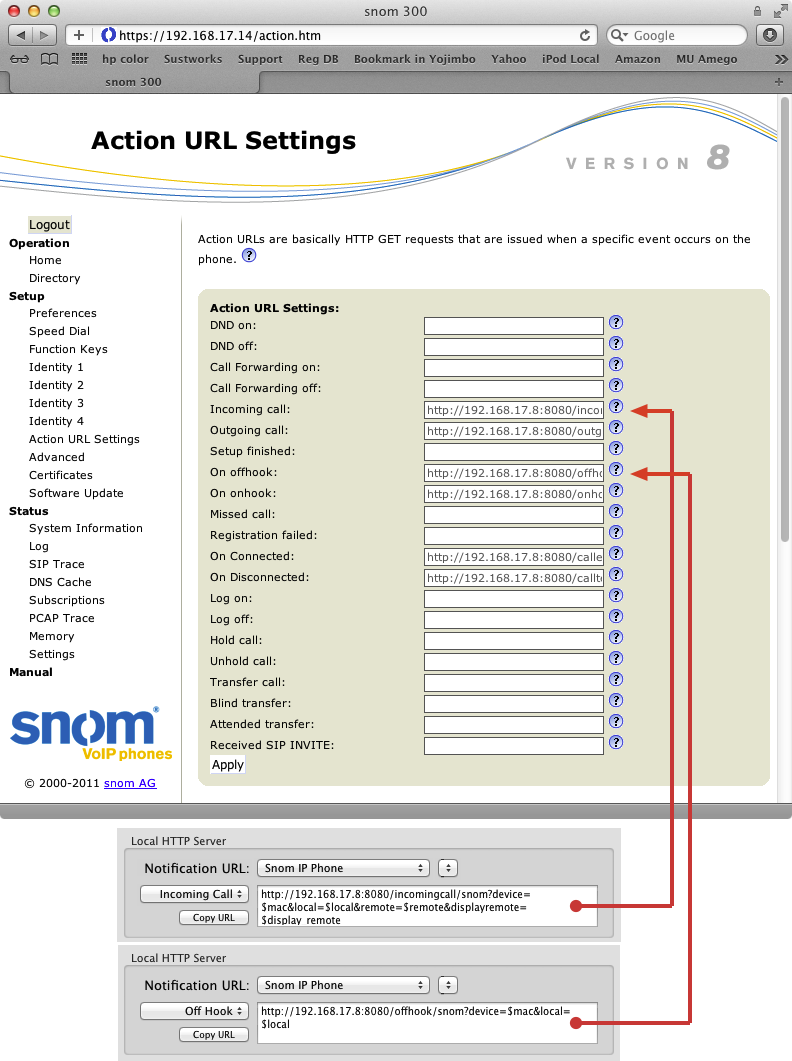
Phone Amego makes this easy to configure from the Caller ID tab as shown.
1. Point your web browser at the IP address of your phone http://ipAddress.
To show the IP address of your phone (Snom300 or similar) press the down arrow
repeatedly until you reach "Information IP Address" then press Enter (check).
2. Login with your username and password.
The default username and password may be "admin", "admin" (or none required).
If these don't work, contact your system administrator. If you are stuck,
you can use the TFTP recovery procedure to reset your phone to its
factory default settings (no password required).
3. Navigate to "Setup -> Action URL Settings"
4. Copy and paste the corresponding URL for each action.
Copy from the Local HTTP Server box under the Caller ID tab in Phone Amego,
and paste to the corresponding field in your web browser.
5. Once you have entered the URL for each telephone event,
scroll down to the bottom of the page and press "Apply" .
It may take a few moments for your phone to update its settings.
6. Within Phone Amego, press and hold the Command key on your Mac keyboard while you
pickup the handset on your phone. When Phone Amego sees the "Off-hook" event with
the Command key down, it will add your phone to the telephone devices table and should
then be ready to recognize call events. If you have a headset plugged into your phone, you
may need to unplug it temporarily to send an "Off-hook" event when you lift the handset.
Dialing
In order for Phone Amego to dial your phone, you will need to configure your phone to allow remote control. Since you are enabling remote control, it is recommended that you establish a username and password to restrict access to your phone. You can set these by navigating to "Setup -> Advanced -> QoS/Security -> HTTP Server".
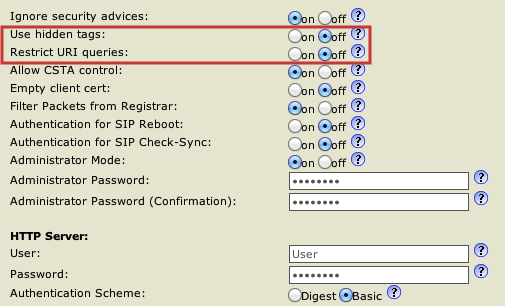
To enable remote control, navigate to "Setup -> Advanced -> QoS/Security"
Set "Use hidden tags" and "Restrict URI queries" to off
Scroll down to press "Apply", and then "Save" your settings if requested to do so.
Navigate to "Advanced -> Webserver connection type" and set it to "http or https”.
When you are ready to place a call, select your Snom IP phone as the telephone device and dial normally using Phone Amego. You may be prompted for your login password the first time you try to dial if needed. You can also set your password explicitly by double-clicking on the corresponding entry in the Telephone Devices table. See Dialing to enable the "Dial With Phone Amego" application service if desired.
If you wish to remove your phone from Phone Amego, select it in the Telephone Devices table and press the "-" button. To add it back, press Command while you lift the handset on your phone.
The configuration procedure above depends on your Snom phone being able to find Phone Amego at a known IP address. Please see IP Addresses and DHCP for additional information.
Access Control
Your primary means of controlling remote access to your phone is the username and password you configure for the HTTP server. Phone Amego uses a WebKit window which supports basic authentication so your username and password are not sent as clear text.
Which Snom Phones Are Supported?
Phone Amego is designed to work with the Snom 300 or later models that can run firmware version 7 or 8.
Testing Notes
I tested Phone Amego with an Snom300 I was able to find inexpensively on eBay. I updated the firmware to version 7 and then version 8 (snom300-SIP 8.4.35). Updating the firmware was easy and the documentation on the Snom web site is extensive. Phone Amego uses features that require firmware version 7 or later (to answer, hangup, and send touch-tones).
The Snom300 is a moderately priced entry level IP phone with a 2x16 character display. The user interface is simple but effective for basic configuration. A key feature is that the phone supports standard uaCSTA (user agent Computer Supported Telephony Applications) making it attractive for call center applications. Snom has been a leader in open standards SIP technology in Europe.
Things I liked:
- Solid hardware and software. Extensive Web UI and CTI support allowing you to access almost every feature of the phone.
Not as nice:
- The 2x16 non-backlit display is too limiting to review your call history or access other user features. The features are available through a web UI, but the phone itself offers minimal visual support.
User Reports
One user reported problems getting his snom821 to work with Phone Amego when running firmware version 8.4.35 . Downgrading to snom 821 V8.7.3.19 allowed it to work as expected. If you are unable to find the "Restrict URI queries" setting as shown, this may be a firmware issue.